
Setting up your Pettutor Dog Feeder involves 2 steps (after feeder is in AP mode).
These are described next. For both, there is a QR code that can be scanned to perform these operations.
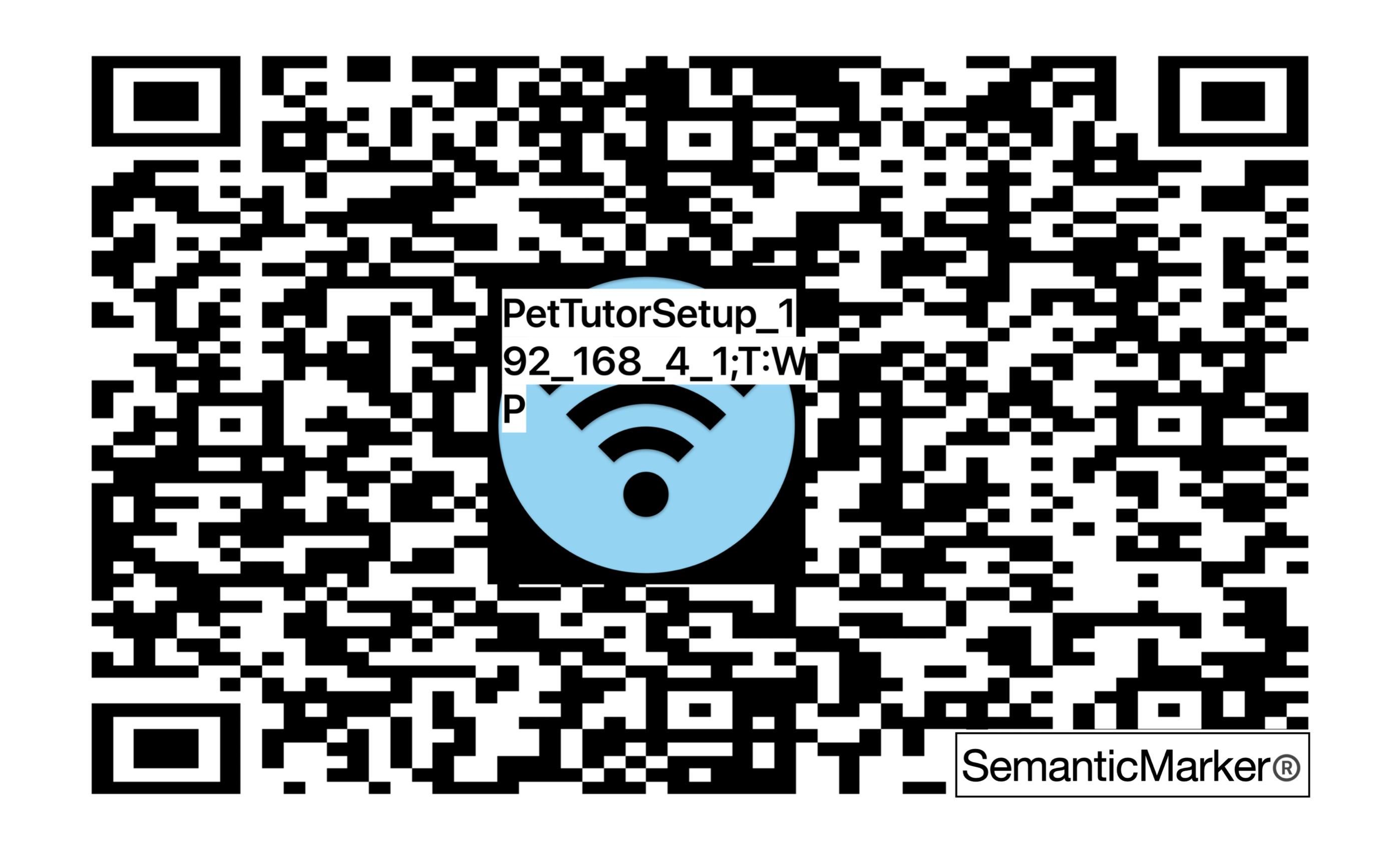
Scan or select PettutorSetup_192_168_4_1 to join the WIFI hotspot. This is after your device was put into WIFI AP mode (click to save image)
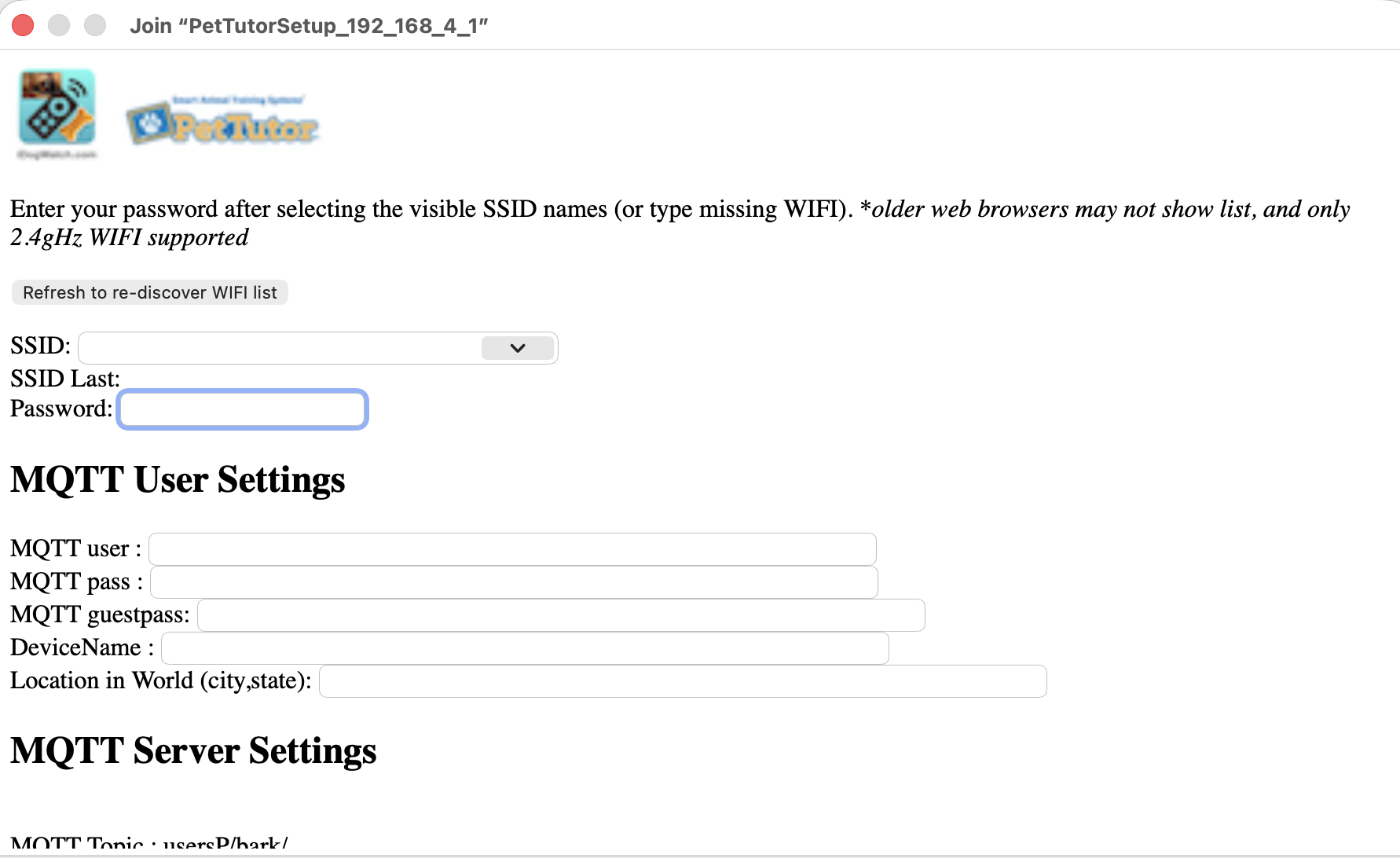
Scan or click the 'connect to feeder' button to take your browser to the Pettutor setup page. Enter your user credentials and hit submit. (click to save image) NOTE: the web page will look like this
The credentials you will enter on this web page are your Username, Password, Guest Password (doggy), the name of your device (come up with a nice name like your pet) and optionally the city your live in. This is used to map all our users world wide. You can click on the next button to log into your web agent to see if your credentials are working (eg. you have the write username and password).
Finally, if you are to write the WIFI setup to an NFC tag supported on both Android and Apple frameworks, the following URL can be used.
This will invoke a web page that has the QR code you saw above. This will be invoked from from reading the NFC tag. You can scan this to get an idea of the web page the NFC reader will present. The buttons below will also do the same and copy to the cut buffer. (click to save image)
 Also, check out our Accessability capabilities.

©2026 KonaCurrents, LLC, and
Semantic Marker®
Revision History